
Transport & Playback
Start, stop, loop and scrub your song from the transport bar at the top of the window. Everything here has a key, so your hands can stay on the keyboard.

The transport bar at a glance
The transport bar runs across the top of the window. From left to right it holds the project name, the transport buttons, the tempo and time signature, the position readouts, the metronome, the Snap toggle, the timeline zoom, the master fader, and buttons that open the chord pad, the drum machine and the mixer.
On a smaller screen the bar switches to a compact layout. Every control stays; some shrink to icons.
Play, pause, record and stop keybindings
- Press Command + R to record.
- Press Space to play. Press it again to pause: the playhead stays where it stopped.
- Press ⇧Space to play from the start.
- Press Return to stop.
- Press ⇧Return to return to the start. When looping is on, it returns to the loop start instead. The timeline scrolls back with it.
-
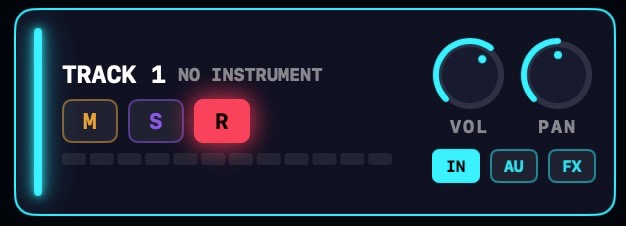 An example of an armed track (notice the "R" is red). The record button starts recording on every armed track, after the count-in. See Recording Audio and Recording MIDI.
The position and time readouts
Two readouts follow the playhead:

- POSITION counts in bars, beats and sixteenths.
3.2.4means bar 3, beat 2, fourth sixteenth. - TIME is a wall clock: minutes, seconds and hundredths. Past an hour it switches to hours, minutes and seconds.
How the bars group depends on the time signature. See Tempo & Time Signature.
Moving the playhead
Click anywhere in the time ruler to move the playhead there. Drag along the ruler to slide it. The thin strips just above and below the ruler work too, so you don't need pixel-perfect aim.
When Snap is on (the S button, or press S) and the transport is stopped, the playhead lands on the grid. That way anything you paste at the playhead lands in time with the project.
Scrubbing
Dragging the playhead previews whatever sits under it, so you can find a spot by ear:
- MIDI notes under the playhead sound through their track's instrument, and hold for as long as the playhead sits on them.
- Audio plays a short slice of the take at the playhead's position.
During playback, dragging the ruler jumps the playhead and the music keeps rolling. A moving drag stays continuous: the scrubber never snaps while the song plays.
Looping playback
- Press L, or click the loop button in the transport bar, to turn looping on.
- A loop bar appears in the ruler, placed in the part of the timeline you're looking at.
- Drag the bar's body to move it. Drag its end caps to resize it. It snaps to the beat grid.
- While looping is on, playback cycles the region until you turn it off.
The metronome
- Press M, or click the M button, to toggle the click.
- Right-click the M button to pick the click sound: Ping, Woodblock or Tick. You hear each one as you pick it.
- Set the click volume in Settings · Metronome.
- Choose when the click runs: While playing and While recording are separate switches in Settings · Metronome. Many people record with the click and mix without it.
The count-in
The count-in clicks before every take so you hear the tempo coming. Set it in Settings · Metronome: OFF, 1 BAR or 2 BARS.
The count-in is always audible, even with the metronome off. Notes you play early, during the count-in, are captured and land on the downbeat. See Recording MIDI.