
Tempo & Time Signature
Set your project's speed and meter in the transport bar, then shape the tempo over time with the tempo track.
Set the tempo
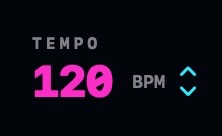
The TEMPO number lives in the transport bar. There are three ways to change it:
- Drag the number: up is faster, down is slower.
- Step with the small arrows beside it, one BPM at a time. The control runs from 20 to 300 BPM.
- Tap it in: click the number in rhythm. Two taps are enough; keep tapping and NeonDAW averages your last few. Pause for a couple of seconds and the next tap starts a fresh count.
Change the time signature
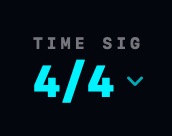
Click TIME SIG and pick a meter: 4/4, 3/4, 2/4, 5/4, 6/8, 7/8, 9/8 or 12/8.
The meter decides how beats group into bars. Bar lines, the metronome's accents, the count-in length and the drum machine's bars all follow it. Your music stays put: clips and notes keep their positions, and only the bar lines around them regroup.
The tempo track
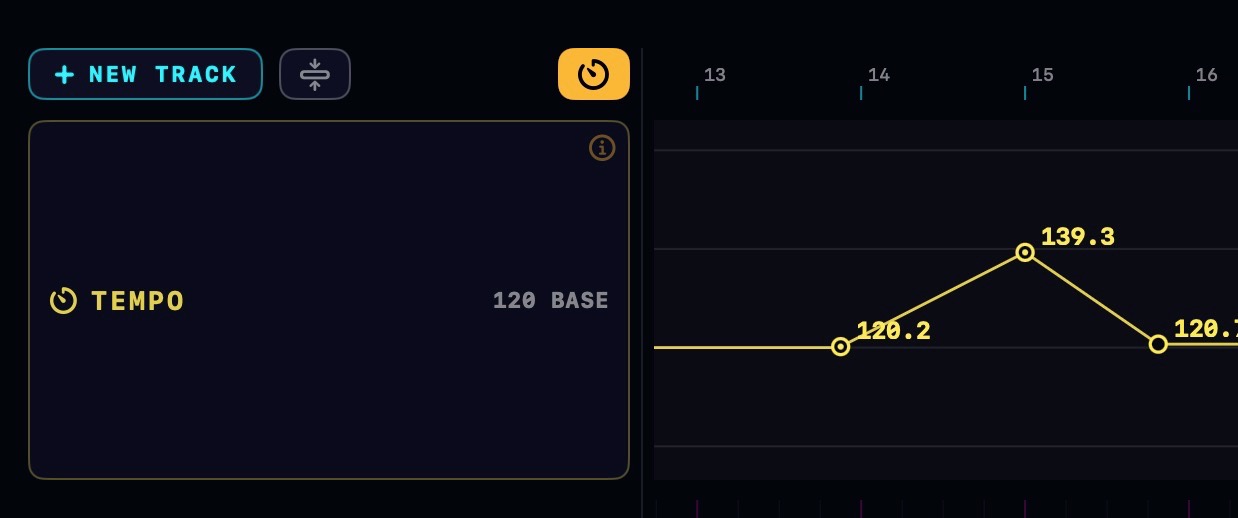
Click the yellow time icon to the right of NEW TRACK to show the tempo track. It opens as a lane across the timeline. The amber line is your song's tempo.
Tempo points
- Add a point: double-click or right click empty space and choose Add Tempo Point
- Move a point: drag it. Left and right moves it in time; up and down changes its BPM. With Snap on, it lands on the grid.
- Type an exact BPM: right-click the point and choose Set BPM…
- Delete a point: right-click it and choose Delete Tempo Point.
Every edit is one undo step, so ⌘Z walks back through your changes.
Ramps vs jumps
A normal point jumps: the tempo holds its value, then steps to the new one when the playhead reaches the point.
Right-click a point and choose Ramp to Next to make it glide instead. The tempo changes gradually from that point into the next one: a smooth accelerando or ritardando instead of a step. Choose Step to Next to turn the ramp back off.
The top-bar BPM and the tempo track
The BPM control in the transport bar sets the starting tempo: the tempo your song begins at, before the first tempo point. Tap or drag it and the whole map moves with it. The two are one system, not two competing tempos.
Video and hit markers
Video clips and hit markers keep their film position when the tempo changes. The picture stays locked to real time while the bars move around it. That is what makes the tempo track useful for scoring: see Video & Scoring.
Sync an audio file to the project
Dropped in an audio file that doesn't match your tempo? Right-click its clip and choose Sync BPM With Project. NeonDAW reads the audio's tempo and time-stretches the take to match the project, with the pitch preserved.
- If the file already matches, you'll see ALREADY IN SYNC and nothing changes.
- Once a take's tempo is known, syncing again follows your project exactly: keep lowering the BPM and the audio keeps slowing.
- The stretch is one undo step. ⌘Z brings the original take back.
More clip tools live in Audio Clip Tools.