
Recording MIDI
Arm an instrument track, press record, and play. NeonDAW captures your MIDI keyboard, the typing keyboard, and the chord pad, all in one take.
Record a MIDI take
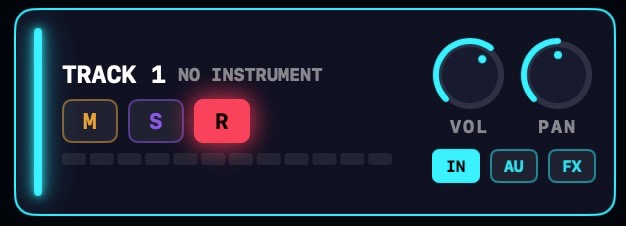
Arm an instrument track with its R chip, press the record button in the transport bar, and play. After the count-in, everything you play lands on the track as notes.
A MIDI take lands on every armed instrument track. Arm two tracks and both record the same performance: an easy way to layer two instruments.
A MIDI-only take never touches the microphone, so no mic permission is needed.
Silent while you play? The track needs an instrument. Click its AU button to pick one. See Instruments.
What gets captured
Every live input that reaches an armed track is recorded:
- Your MIDI keyboard. Notes record at the velocity you play them.
- The typing keyboard's two Q-row octaves. Strikes use the velocity set in Settings · Audio & MIDI.
- The chord pad, including strums and running arpeggios.
Each instrument track's IN menu filters what it listens to: all inputs, only the chord pad, only MIDI IN with an optional channel filter, or nothing. The typing keyboard counts as chord pad input. See Tracks.
Play early, land on the downbeat
Players anticipate the beat, so NeonDAW does too. Notes struck during the count-in are captured and placed exactly at the start of the take. Come in a hair early and the note still lands on the downbeat.
Recording chord pad performances
The chord pad records exactly what it plays. Strummed chords keep their roll, and humanized timing is captured as played.
When the arpeggiator runs while the transport rolls, its steps ride the beat grid, and each note is recorded at its exact grid slot. Recorded arps play back perfectly in time. See The Chord Pad.
Takes overdub
Recording over existing notes keeps them: a new take overdubs at the playhead position. For a clean retake, undo with ⌘Z, or delete the clip first and go again.
When the take ends, the notes become a clip you can open and polish in The Piano Roll.