
The Chord Pad
One pad, one chord. The chord pad builds chords that fit your key and scale and lays them out like a two octave piano, so a progression is always under your fingers.
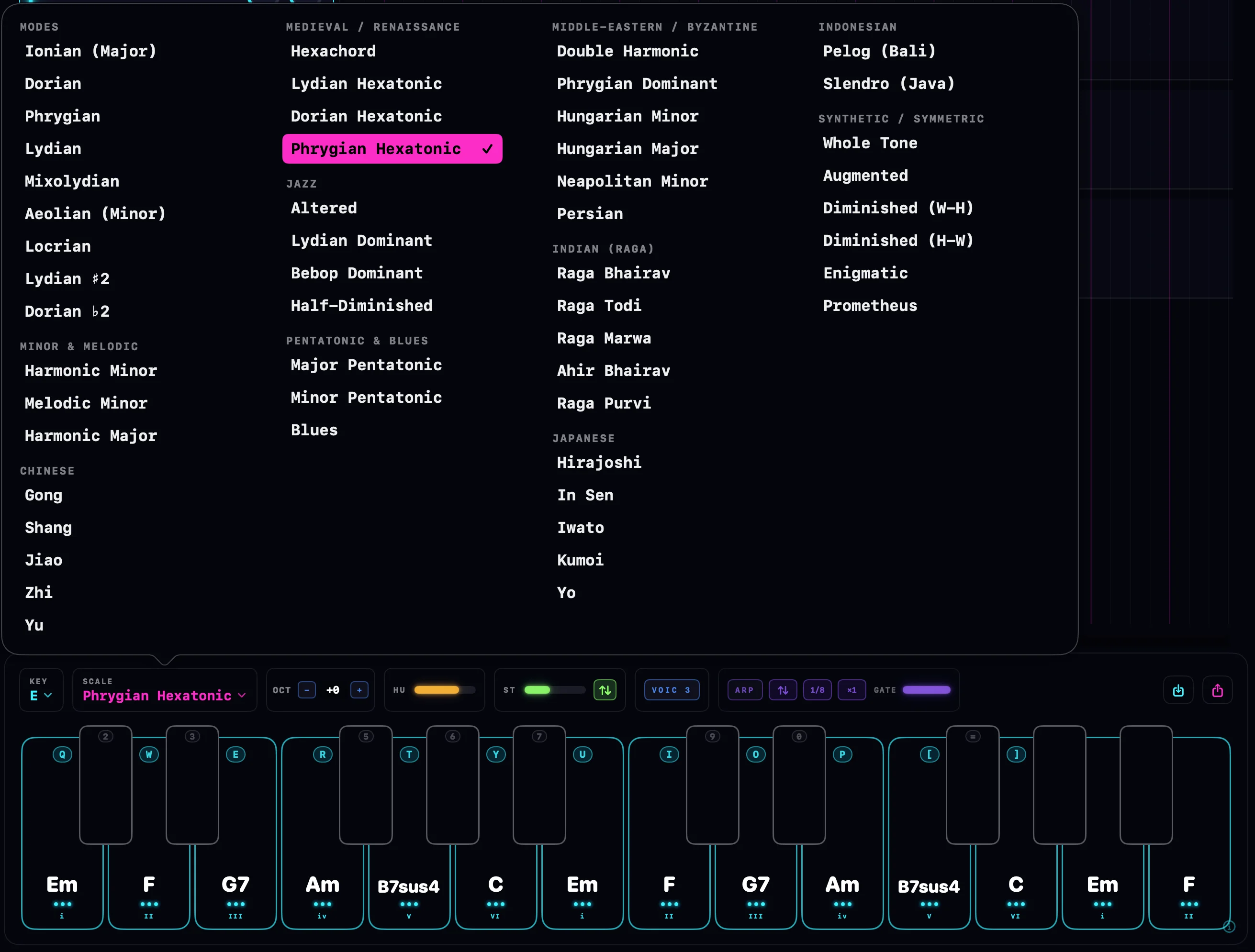
Opening the chord pad
Click the piano keys button in the transport bar, or press ⌘P. The pad opens in the panel slot at the bottom of the main window. It shares that slot with the drum machine and the mixer.
The faint ⓘ badge in the panel's corner opens a short explainer card right inside the app.
What the pads are
The pads are laid out like two piano octaves, starting at the C below middle C: 14 full height white keys and 10 shorter black keys.
- White pads hold the chords of your key and scale, one per scale degree, climbing from left to right. Each one shows its chord name and a roman numeral, so in A minor you see Am, B°, C, Dm, Em, F, G walking upward.
- Black pads start blank. They are free slots: right-click one and customize it to put any chord you like there. A blank pad stays silent until you do.
Pad colors tell you what you are looking at: cyan for in-scale chords, purple for the black key slots, amber for any pad you have customized.
Playing the pads
Three ways to play, all at once if you like:
- Click a pad with the mouse. It sounds for as long as you hold it.
- Typing keyboard. The letter row plays the white pads and the number row above it plays the black pads, mirroring a piano. Q is the lowest pad; the row runs Q W E R T Y U I O P [ ] for the white keys with 2 3 5 6 7 9 0 = for the black keys in between.
- MIDI keyboard. While the pad is open, the two pad octaves on your controller strike chords. Keys outside that range play plain notes: bass below the pads, melody above.
MIDI pads are velocity sensitive: the chord strikes as hard as you play. Clicks and typing keys use the strike strength set in Settings > Audio & MIDI.
Close the pad (press ⌘P again) and your typing keyboard and MIDI controller go back to playing plain notes everywhere. Nothing is captured while the pad is off.
Key, scale and octave
The KEY menu picks the root note and the SCALE / MODE menu picks the scale. Change either one and every pad follows instantly, so you can move a whole progression to a new key with one click.
The OCT stepper shifts all the pads up or down by octaves, from −3 to +3. Click the value readout to jump back to 0.
Voicings
The VOICING button cycles four shapes for the same chords:
| Voicing | What it does |
|---|---|
| 1 · CLOSE | The chords as built, notes packed together. |
| 2 · OPEN | Drops the second voice from the top down an octave. |
| 3 · SPREAD | Opens the chord wider still, spreading the middle voices. |
| 4 · DEEP | Doubles the root an octave down for extra weight. |
Voicings re-shape the generated chords at the moment you strike them, so cycling is always reversible. Pads you have customized are left alone: their notes are an exact choice already and play back verbatim. Picking a new scale returns to CLOSE.
Strum and humanize
STRUM rolls the chord instead of striking it all at once. The slider sets how wide the roll is, and the little arrow chip picks the direction: up, down, or alternating with every press, like guitar strokes.
HUMANIZE loosens the grip: each note gets a small random shift in timing and velocity, so held chords stop sounding machine perfect.
The arpeggiator
Turn ARP on and a held pad no longer sustains its chord: it cycles through the chord's notes in time. The chips next to the ARP button shape the pattern:
| Control | What it does |
|---|---|
| Order | Up, down, ping-pong, or random. |
| Rate | 1/4, 1/8, 1/8T, 1/16 or 1/32 notes, synced to the project tempo. |
| ×1 · ×2 · ×3 | Octave range: how many octaves the line climbs through. |
| GATE | Note length, from short and staccato to full legato. |
The pulse belongs to the arpeggiator, not to any one pad. Press a new pad while the arp is running and its chord joins the pulse in time, entering on the next step from the note nearest the last one played. Chords hand over smoothly instead of restarting the clock.
Customizing pads
Right-click any pad for its menu:
- Customize Chord opens a small piano keyboard. Tap keys to add or remove notes: what you see is exactly what the pad plays, and it auditions as you build. The editor has its own VOICING button that bakes a voicing into just this chord, and a RESET to start over.
- Copy Chord and Paste Chord move a chord from one pad to another.
- Reset to Scale drops your edits and returns the pad to its scale-derived chord.
Customized pads turn amber and show a CUSTOM tag. They keep their notes even when you change key or scale.
Saving and loading progressions
The Save Chords button stores the whole setup under a name: the key, the scale, the octave shift and every customized pad travel together. Load Chords brings a saved progression back; the list is searchable, and the trash button deletes one after confirming. Saving with an existing name replaces that progression.
Which track the pads play
The pads play through your project's instrument tracks, the same way live MIDI does:
- If any instrument tracks are armed and listening, every one of them sounds at once.
- Otherwise the selected instrument track plays.
To record a pad performance, arm an instrument track and hit record: strums, humanize and arp lines are all captured as ordinary MIDI notes. See Recording MIDI.