
Getting Started
This chapter takes you from a fresh install to your first chord: what NeonDAW is, what is on the screen, and how to start playing.
What you need
- A Mac running macOS 14 or later.
- NeonDAW. Every instrument and effect is included.
That is the whole list. A MIDI keyboard and an audio interface are optional, and both work the moment you plug them in. NeonDAW also hosts third-party Audio Unit plugins if you have any installed: see Instruments.
Use wired headphones or speakers when playing or recording. Bluetooth audio adds a delay you can feel, and the app will warn you when the output goes wireless. See Tips & Troubleshooting.
First launch: the starter session
The first time NeonDAW opens, it sets up a starter session so nobody lands on a blank page. You get one instrument track named TRACK 1, already selected, with the chord pad open underneath it.
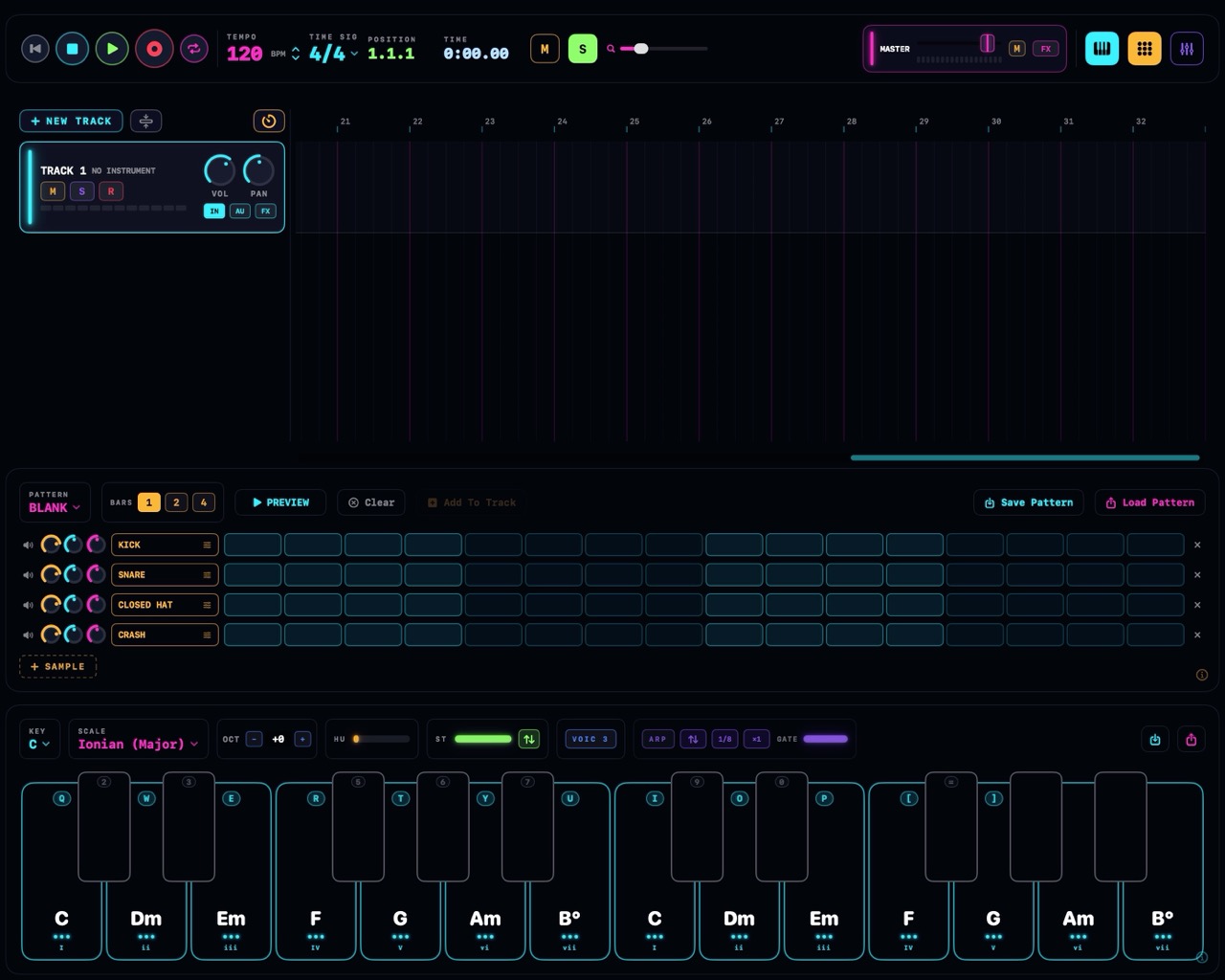
The main window at a glance
- The transport bar runs across the top: play and record controls, the position readout, BPM, time signature, the project name, and buttons for the metronome, loop, snap, zoom and the bottom panels. See Transport & Playback.
- The track area fills the middle: your tracks down the left edge, their clips on the timeline to the right. See Tracks.
- The bottom panel slot holds the chord pad, the drum machine and the mixer. The pad and the drum machine can be up at the same time: beats looping in the machine, chords on the pad. The mixer takes the slot alone.
The piano roll opens in its own window, so you can edit notes while the arrangement stays in view.
Press Space to play, and press it again to pause. Hit Shift + Space to play from the beginning.
Play with your computer keyboard
The typing keyboard mirrors a piano across two octaves. The letter row, Q through ], is the white keys. The number row above it is the black keys.
The keys play while the chord pad is open: each one presses a pad, and each pad is a chord. Close the pad and the letters go back to being shortcuts.
How hard the notes strike is set with the KEYS VELOCITY slider in Settings > Audio & MIDI. The full key map is in Keyboard Shortcuts.
Play with a MIDI keyboard
Plug in and play. There is no setup: every connected MIDI device and channel works automatically, and the keys play the selected instrument track.
With the chord pad open, the two pad octaves strike chords and keys outside them play plain notes. With the pad closed, every key plays plain notes. Velocity follows your playing either way.
To point a specific track at a specific device or channel, use the track's IN menu: see Tracks.
Help inside the app
Panels with more going on carry a faint ⓘ badge in the corner. Click it and an explainer card walks you through the panel in a few plain sentences.
The Help menu links here too: Help > NeonDAW Documentation (⌘?) opens these pages, and Help > Get Support reaches us directly.