
The Mixer
The mixer shows every track as a vertical channel strip, side by side. Balance the whole song from one place: volume, pan, mute, solo and effects for each track, each group, and the master bus.
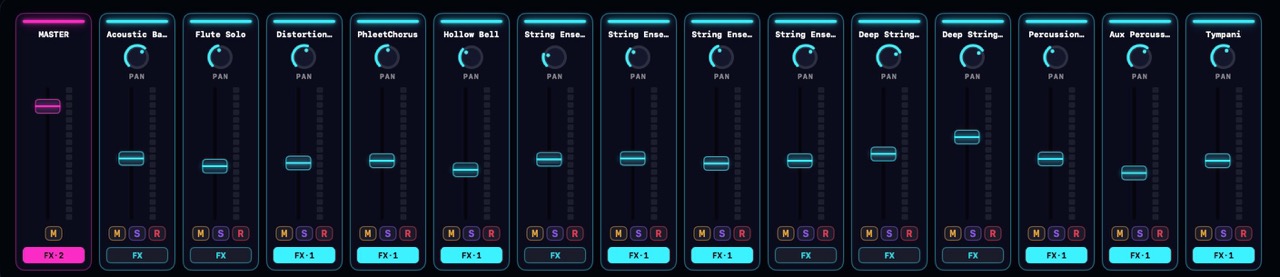
Opening the mixer
Click the sliders button in the transport bar, press ⌘M, or choose View > Show Mixer. The same shortcut closes it again.
The mixer lives in the bottom panel slot, the same slot the chord pad and the drum machine use. Opening one closes the others.
Reading the strips
The MASTER strip sits first. After it come your tracks and groups, left to right, in the same order as the track list, top to bottom. A group's strip rides next to its member tracks.
Video tracks don't get a strip: there is nothing to mix on them. When there are more strips than fit, scroll the mixer sideways.
Each strip shows, top to bottom:
- A color cap and the track's name.
- A PAN knob.
- The volume fader, with a level meter beside it.
- M / S / R chips: mute, solo, and record-arm. They are the same switches as the track headers, so a change here shows there too.
- An FX button that opens the strip's effect chain. When the chain has effects it fills in and shows the count, like FX·2.
A muted strip dims so you can spot it at a glance.
The master strip
The master strip controls the final output: everything flows through it.
- The fader sets the master volume, and the meter shows the master bus level.
- M mutes the whole mix.
- FX opens the master bus chain: effects here process the entire song. A limiter on the master is a classic last move.
The master has no pan knob and no solo: it is the one bus everything reaches.
Track and group strips
Track faders reach +12 dB above unity, so you can push a quiet part up, not just pull loud parts down. Group strips work the same way and act on everything inside the group: see Track Groups.
The R chip appears on instrument and audio tracks only. On an armed audio track the meter also shows the live input, so you can watch your level while recording.
Resetting knobs and faders
Right-click any fader or knob and choose Reset to return it to its default. This works everywhere in NeonDAW, not just in the mixer.
Want a level or pan move to play back with the song? Right-click the track's volume or pan knob and create an automation channel. See Automation.